

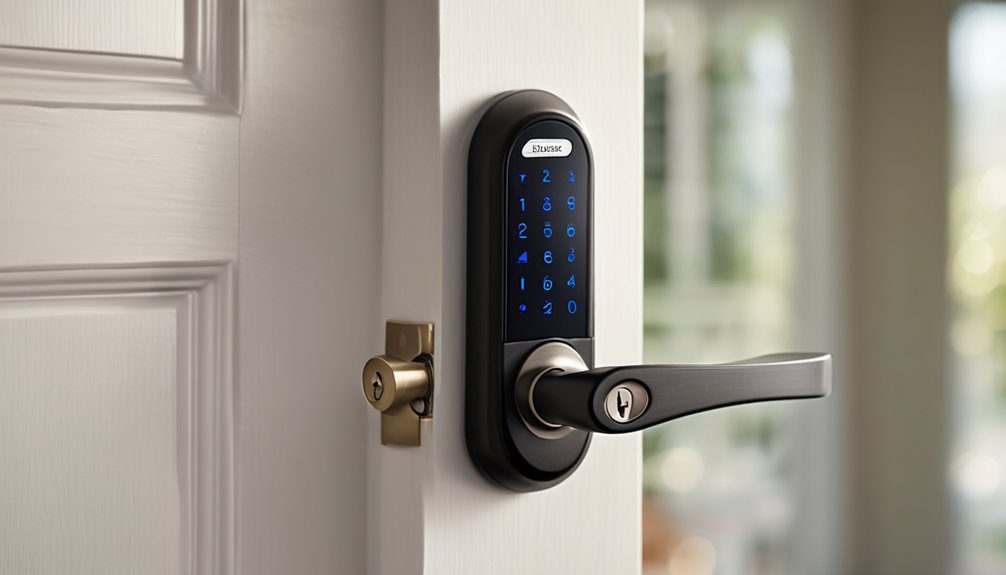
If your Schlage Encode frequently disconnects from WiFi, check for network interference and weak signals near the lock by moving your router or adding boosters. Make sure your lock’s firmware and the app are up to date to fix bugs and improve performance. If issues persist, reset the lock in its battery compartment and reconnect it through the app, ensuring your network is 2.4 GHz. Persistent problems may require contacting Schlage support. Additional steps can help maintain a steady connection.
Common Causes of Schlage Encode WiFi Disconnects
Although Schlage Encode is designed to maintain a stable WiFi connection, several common issues can cause frequent disconnects.
One major factor is network interference, which occurs when other electronic devices or overlapping WiFi signals disrupt your lock’s communication. This interference can weaken the signal, causing drops.
Another important issue involves hardware compatibility; if your router or modem doesn’t fully support the Schlage Encode’s specifications, connection problems may arise.
Ensuring that your equipment meets the necessary standards helps avoid these interruptions. Understanding these causes empowers you to maintain a reliable, free-flowing connection with your smart lock.
How to Check and Improve Your WiFi Signal
How can you determine if your WiFi signal is strong enough to support your Schlage Encode lock? Start by checking the signal strength near your lock using a smartphone or laptop.
Weak signals often cause disconnects, so identify any dead zones. To improve coverage, reduce network interference by moving your router away from metal objects and other electronics.
Installing wifi signal boosters can extend your network’s reach and strengthen the signal in distant areas. Position boosters strategically between your router and the lock to maintain a stable connection.
These steps guarantee your smart lock stays reliably connected without constant interruptions.
Updating Firmware and App for Optimal Performance
Maintaining a strong WiFi connection is only part of keeping your Schlage Encode lock functioning smoothly. Regularly checking for firmware updates guarantees your lock has the latest security patches and performance improvements.
You should also review app settings, as outdated or misconfigured options can cause connectivity issues. To do this, open the Schlage app, navigate to the lock’s settings, and look for available firmware updates.
Installing these promptly helps maintain reliable communication between your lock and WiFi. Keeping both firmware and app settings current is essential for peak performance and uninterrupted access freedom.
Resetting and Reconfiguring Your Schlage Encode Lock
If you encounter persistent connectivity problems or need to restore default settings, resetting and reconfiguring your Schlage Encode lock can resolve many common issues.
Begin the resetting process by locating the reset button inside the battery compartment and holding it for about 10 seconds until the lock beeps.
After the reset, reconfigure your lock using the Schlage Home app, following the setup prompts carefully.
Pay close attention to configuration tips like ensuring your WiFi network is 2.4 GHz and your credentials are correct.
These steps help restore stability and maintain your lock’s connection freedom.
When to Contact Schlage Support for Persistent Issues
Although many common connectivity problems can be resolved through resetting and reconfiguring your Schlage Encode lock, there are situations where persistent issues require professional assistance.
If you’ve tried standard troubleshooting tips without success, it’s time to reach out to Schlage customer service. Persistent disconnections, unusual error messages, or hardware malfunctions often need expert diagnosis.
Contacting support guarantees you get tailored guidance and possible repairs or replacements. Don’t hesitate to seek help if your lock’s performance compromises your freedom or security.
Professional support bridges the gap between DIY fixes and lasting solutions, keeping your smart lock reliable and secure.
Frequently Asked Questions
Can Schlage Encode Connect to Multiple Wifi Networks Simultaneously?
No, you can’t connect your Schlage Encode to multiple WiFi networks simultaneously due to network switching limitations. If you want freedom from WiFi connectivity challenges, you’ll need to manually switch networks when needed.
Does Schlage Encode Support Guest Access Without an App?
No, you can’t enable guest access without the app. If you want app alternatives, you’ll need to explore third-party smart home platforms that might offer guest access features, giving you more freedom beyond Schlage’s default setup.
How Does Schlage Encode Handle Power Outages?
Schlage Encode relies on battery backup, so during power outages, you won’t lose access. Once power restoration occurs, it reconnects seamlessly, letting you maintain control without worrying about interruptions or needing constant supervision.
Can I Integrate Schlage Encode With Smart Home Systems?
You can integrate Schlage Encode with popular smart home systems, but watch for smart home compatibility and integration challenges. You’ll enjoy freedom controlling your lock remotely, though some setups might need extra effort to work smoothly.
What Batteries Are Compatible With Schlage Encode Locks?
You’ll want to use four AA alkaline batteries for your Schlage Encode lock. They provide reliable battery life, so you can enjoy freedom without frequent battery replacement interruptions. Don’t wait—replace them when low!